Normalised feature plots
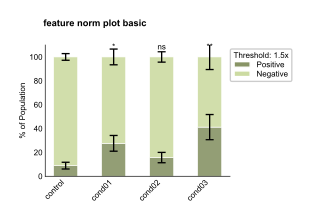
The feature_norm_plot module provides visualization for normalized feature data with threshold-based analysis. These plots normalize data by mode (peak = 1.0) and display the proportion of cells above/below a customizable threshold as stacked bars. They support triplicate display, multiple color schemes, and normalization QC plots.
See the API reference for full signatures and parameter documentation.
Examples
Basic Normalized Plot
Create a basic normalized feature plot with the default green color scheme:
from omero_screen_plots import feature_norm_plot
import pandas as pd

df = pd.read_csv("data.csv")
fig, ax = feature_norm_plot(
    df=df,
    feature="intensity_mean_p21_nucleus",
    conditions=['control', 'cond01', 'cond02', 'cond03'],
    condition_col="condition",
    selector_col="cell_line",
    selector_val="MCF10A",
    color_scheme="green",
    title="feature norm plot basic",
    show_error_bars=True,
    fig_size=(5, 4),
    save=True,
    file_format="svg"
)
Triplicates with Blue Color Scheme
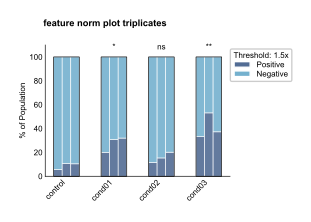
Show individual triplicate data with boxes using the blue color scheme:
fig, ax = feature_norm_plot(
    df=df,
    feature="intensity_mean_p21_nucleus",
    conditions=['control', 'cond01', 'cond02', 'cond03'],
    condition_col="condition",
    selector_col="cell_line",
    selector_val="MCF10A",
    color_scheme="blue",
    title="feature norm plot triplicates",
    show_triplicates=True,
    show_boxes=True,
    threshold=1.5,
    fig_size=(5, 4)
)
Grouped Layout with Purple Scheme
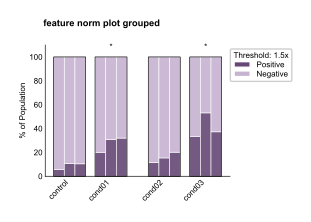
Use grouped layout for better visual organization with the purple color scheme:
fig, ax = feature_norm_plot(
    df=df,
    feature="intensity_mean_p21_nucleus",
    conditions=['control', 'cond01', 'cond02', 'cond03'],
    condition_col="condition",
    selector_col="cell_line",
    selector_val="MCF10A",
    color_scheme="purple",
    title="feature norm plot grouped",
    show_triplicates=True,
    show_boxes=True,
    threshold=1.5,
    group_size=2,
    within_group_spacing=0.2,
    between_group_gap=0.4,
    fig_size=(5, 4)
)
Custom Threshold Analysis
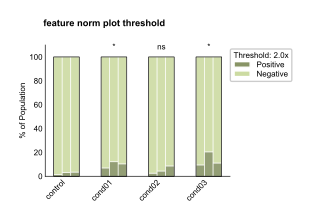
Adjust the threshold for different sensitivity in detecting positive cells:
fig, ax = feature_norm_plot(
    df=df,
    feature="intensity_mean_p21_nucleus",
    conditions=['control', 'cond01', 'cond02', 'cond03'],
    condition_col="condition",
    selector_col="cell_line",
    selector_val="MCF10A",
    color_scheme="green",
    title="feature norm plot threshold",
    threshold=2.0,  # Higher threshold (2x mode instead of 1.5x)
    show_triplicates=True,
    show_boxes=True,
    fig_size=(5, 4)
)
Combined Analysis Comparison
Create multi-panel figures comparing different analysis approaches:
import matplotlib.pyplot as plt
from omero_screen_plots import feature_plot
from omero_screen_plots.utils import save_fig

fig, axes = plt.subplots(3, 1, figsize=(2, 6))
fig.suptitle("feature norm plot comparison", fontsize=8, weight="bold")

# Standard feature plot
feature_plot(
    df=df,
    feature="intensity_mean_p21_nucleus",
    conditions=['control', 'cond01', 'cond02', 'cond03'],
    condition_col="condition",
    selector_col="cell_line",
    selector_val="MCF10A",
    x_label=False,
    group_size=2,
    axes=axes[0],
)
axes[0].set_title("p21 feature plot", fontsize=7)

# Normalized feature plot
feature_norm_plot(
    df=df,
    feature="intensity_mean_p21_nucleus",
    conditions=['control', 'cond01', 'cond02', 'cond03'],
    condition_col="condition",
    selector_col="cell_line",
    selector_val="MCF10A",
    x_label=False,
    axes=axes[1],
    group_size=2,
    show_triplicates=True,
    show_boxes=True,
    threshold=1.5,
)
axes[1].set_title("p21 feature norm plot", fontsize=7)

# Violin plot for comparison
feature_plot(
    df=df,
    feature="area_cell",
    conditions=['control', 'cond01', 'cond02', 'cond03'],
    condition_col="condition",
    selector_col="cell_line",
    selector_val="MCF10A",
    x_label=True,
    violin=True,
    show_scatter=False,
    ymax=10000,
    axes=axes[2],
    group_size=2,
)
axes[2].set_title("area cell violin", fontsize=7)

save_fig(fig, "output/", "feature_norm_comparison", fig_extension="svg")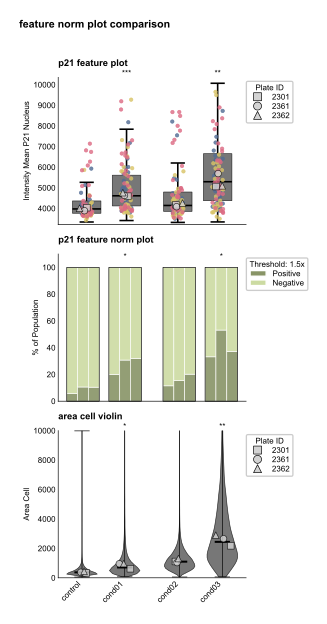
Configuration Options
The feature_norm_plot function supports extensive customization:
Normalization & Thresholding:
- Mode normalization: Data is normalized so the peak (mode) equals 1.0
- Threshold analysis: Customizable threshold (default 1.5x mode) for positive/negative classification
- Plate normalization: Option to normalize within each plate separately
- QC plots: Optional normalization quality control plots showing before/after distributions
Color Schemes:
- Green (default): Olive for positive cells, light green for negative cells
- Blue: Blue for positive cells, light blue for negative cells
- Purple: Purple for positive cells, lavender for negative cells
Display Options:
- Summary bars: Show aggregated proportions across replicates with error bars
- Triplicate display: Show individual replicate bars with optional box outlines
- Grouping: Organize conditions into groups with custom spacing
- Threshold legend: Automatic legend showing threshold value and color mapping
Layout & Styling:
- Figure size: Control figure dimensions in cm or inches
- Spacing: Customize within-group and between-group spacing
- Labels: Control axis labels, titles, and legend display
- Export: Save in multiple formats (SVG, PDF, PNG) with custom DPI