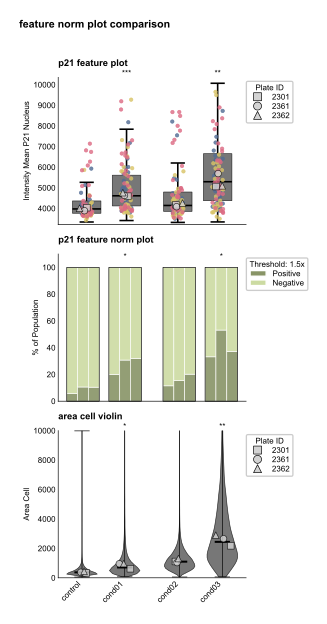
# Normalised feature plots
The feature_norm_plot module provides visualization for normalized feature data with threshold-based analysis. These plots normalize data by mode (peak = 1.0) and display the proportion of cells above/below a customizable threshold as stacked bars. They support triplicate display, multiple color schemes, and normalization QC plots.
See the [API reference](../reference/index.md) for full signatures and parameter documentation.
# Examples
## Basic Normalized Plot
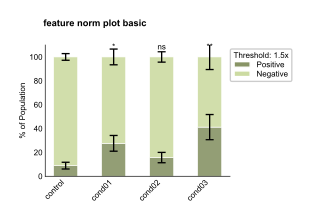
Create a basic normalized feature plot with the default green color scheme:
``` python
from omero_screen_plots import feature_norm_plot
import pandas as pd
df = pd.read_csv("data.csv")
fig, ax = feature_norm_plot(
df=df,
feature="intensity_mean_p21_nucleus",
conditions=['control', 'cond01', 'cond02', 'cond03'],
condition_col="condition",
selector_col="cell_line",
selector_val="MCF10A",
color_scheme="green",
title="feature norm plot basic",
show_error_bars=True,
fig_size=(5, 4),
save=True,
file_format="svg"
)
```
Basic Normalized Plot
## Triplicates with Blue Color Scheme
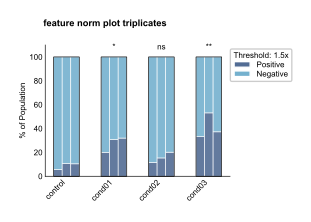
Show individual triplicate data with boxes using the blue color scheme:
``` python
fig, ax = feature_norm_plot(
df=df,
feature="intensity_mean_p21_nucleus",
conditions=['control', 'cond01', 'cond02', 'cond03'],
condition_col="condition",
selector_col="cell_line",
selector_val="MCF10A",
color_scheme="blue",
title="feature norm plot triplicates",
show_triplicates=True,
show_boxes=True,
threshold=1.5,
fig_size=(5, 4)
)
```
Triplicates with Blue Color Scheme
## Grouped Layout with Purple Scheme
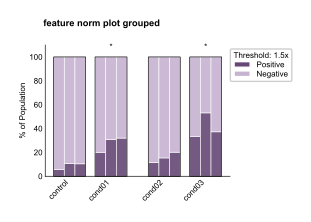
Use grouped layout for better visual organization with the purple color scheme:
``` python
fig, ax = feature_norm_plot(
df=df,
feature="intensity_mean_p21_nucleus",
conditions=['control', 'cond01', 'cond02', 'cond03'],
condition_col="condition",
selector_col="cell_line",
selector_val="MCF10A",
color_scheme="purple",
title="feature norm plot grouped",
show_triplicates=True,
show_boxes=True,
threshold=1.5,
group_size=2,
within_group_spacing=0.2,
between_group_gap=0.4,
fig_size=(5, 4)
)
```
Grouped Layout with Purple Scheme
## Custom Threshold Analysis
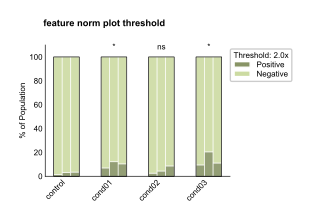
Adjust the threshold for different sensitivity in detecting positive cells:
``` python
fig, ax = feature_norm_plot(
df=df,
feature="intensity_mean_p21_nucleus",
conditions=['control', 'cond01', 'cond02', 'cond03'],
condition_col="condition",
selector_col="cell_line",
selector_val="MCF10A",
color_scheme="green",
title="feature norm plot threshold",
threshold=2.0, # Higher threshold (2x mode instead of 1.5x)
show_triplicates=True,
show_boxes=True,
fig_size=(5, 4)
)
```
Combined Analysis Comparison
## Configuration Options
The feature_norm_plot function supports extensive customization:
**Normalization & Thresholding**:
- **Mode normalization**: Data is normalized so the peak (mode) equals 1.0
- **Threshold analysis**: Customizable threshold (default 1.5x mode) for positive/negative classification
- **Plate normalization**: Option to normalize within each plate separately
- **QC plots**: Optional normalization quality control plots showing before/after distributions
**Color Schemes**:
- **Green** (default): Olive for positive cells, light green for negative cells
- **Blue**: Blue for positive cells, light blue for negative cells
- **Purple**: Purple for positive cells, lavender for negative cells
**Display Options**:
- **Summary bars**: Show aggregated proportions across replicates with error bars
- **Triplicate display**: Show individual replicate bars with optional box outlines
- **Grouping**: Organize conditions into groups with custom spacing
- **Threshold legend**: Automatic legend showing threshold value and color mapping
**Layout & Styling**:
- **Figure size**: Control figure dimensions in cm or inches
- **Spacing**: Customize within-group and between-group spacing
- **Labels**: Control axis labels, titles, and legend display
- **Export**: Save in multiple formats (SVG, PDF, PNG) with custom DPI